Guide
Copy text from sites that block selection
Some sites lock selectable text. A screenshot plus on-device OCR gets you an editable copy without installing an extension.
Updated September 25, 2026
Why selection gets blocked
Some pages disable text selection, hijack right-click, or overlay transparent layers so you cannot highlight a quote. Training portals, gated articles, and older CMS themes do this a lot.
You still need the wording for notes, accessibility, translation, or a bug report. Fighting the CSS with extensions can work, but it is another install and another permission surface.
A screenshot turns the visible pixels into an image. OCR turns those pixels into editable text in your browser. That path does not require the site to cooperate.
Capture only the block you need
Zoom the page so the type is large. Crop to the paragraph, table, or callout. Leave out sticky headers, cookie banners, and sidebars. Less chrome means fewer junk lines in the OCR box.
On Windows, Snipping Tool or Win+Shift+S works. On Mac, Shift+Command+4. On phones, use the system screenshot, then transfer or open the file where you run the browser tool.
Prefer PNG when you still control the save. Chat re-encodes and soft JPEG previews erase thin punctuation first.
Run OCR in the browser
Open Screenshot2Text or the copy-text-from-image landing. Drop the crop, or paste the screenshot with Ctrl+V / ⌘V if it is still on the clipboard.
Pick the language that matches the page. Wait for the first-time engine load if this is a fresh browser profile. Read the editable result. Fix obvious mistakes. Copy or download .txt.
Recognition stays in the tab. We do not upload your screenshot for the read. Ads stay in the page chrome and never receive the image or the extracted string.
Worked example: an article that blocks selection
We built a small news article page with selection turned off in its styles, the same trick many sites use. In Chromium, triple-clicking the text and pressing Ctrl+A both selected nothing. We took a screenshot of the article block at twice normal pixel density (1224 by 460 pixels) and dropped it on Screenshot2Text. We ran it on a local production build of the current site code in headless Chromium, and the output below is exactly what came back.
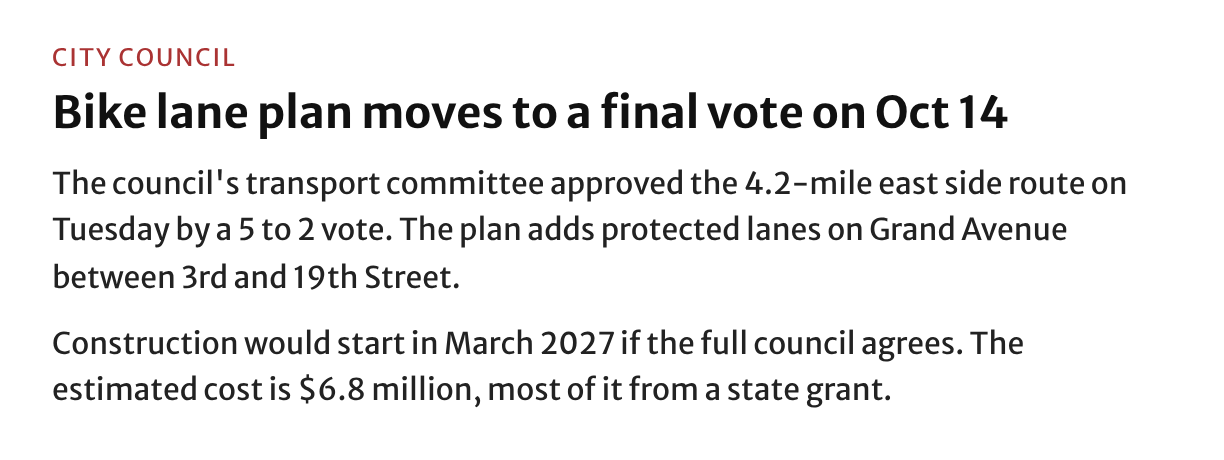
CITY COUNCIL
Bike lane s1an moves to a final voteon Oct 1-

The council's transport committee approved the 4.2-mile east side route on
Tuesday by a 5 to 2 vote. The plan adds protected lanes on Grand Avenue
between 3rd and 19th Street.

Construction would startin March 2027 if the full council agrees. The
estimated cost is $6.8 million, most of it from a state grant.
The two body paragraphs came through with every number right, 4.2-mile, 5 to 2, 3rd, 19th, March 2027, and $6.8 million, plus one missing space. The big bold headline had most of the trouble. The fixes:
Headline: s1an becomes plan, voteon becomes vote on, and Oct 1- becomes Oct 14.
Second paragraph: startin becomes start in.
Copy text put exactly this text on the clipboard, so make these fixes in the box first. Large display fonts in headlines are often harder than body text, so check the headline and any dates in it. If a headline matters, crop it on its own and run it again, or just type it.
Edit before you paste elsewhere
Blocked-copy pages often use tight columns, justified text, or watermark overlays. Expect a few broken words, split hyphens, or line breaks in the middle of sentences.
Skim for 1/l/I and O/0 swaps. Rejoin lines that should be one paragraph. Restore list markers if the engine dropped them. Then paste into your notes or ticket.
If the page mixes languages, crop one language region at a time. Wrong language packs produce confident nonsense.
Respect and policy notes
OCR does not grant rights you do not already have. Follow the site terms, copyright, and your workplace policy. Use this flow for access and note-taking problems, not for bypassing paywalls you are not allowed to skip.
If the site is your own product and users report blocked selection, fix the CSS. Screenshot OCR is a user workaround, not a substitute for accessible text.
Do not email screenshots to hello@screenshot2text.com. Contact is for product feedback and bug reports with a URL, not file drops.
When this path struggles
Tiny footnotes, text over busy photos, and neon themes still confuse OCR. Recapture with higher zoom, a cleaner crop, or a light theme if the site offers one.
If the blocked content is a video frame or a canvas animation, pause and capture a sharp still. Motion blur is a hard fail.
When the capture is sharp and language is correct but output is empty, read the when-browser-OCR-fails checklist. The usual causes are engine load, file type, or memory on a huge image.