Screenshot2Text
PDF to Text
To convert a PDF to text, drop the PDF here. Each page is read in your browser, and its text appears in the box below under a page header. We don't upload your file.
Screenshot2Text
To convert a PDF to text, drop the PDF here. Each page is read in your browser, and its text appears in the box below under a page header. We don't upload your file.
OCR runs in the browser. We don't upload your file for OCR.
Drop a screenshot, image, or PDF here
PNG, JPG, WEBP, GIF, BMP, or PDF · several files at once · tap to browse
Or paste a screenshot with Ctrl+V or ⌘V
This works on scanned PDFs, where every page is really a picture of paper and there is no text to highlight. It also works on slides saved as PDF and other files with the words baked into the image. Each page is drawn in this tab, then read with open-source OCR. There is no account.
Pages are read one at a time, so a long file does not freeze the tab. The status line shows the page it is on. A page that fails is skipped and the rest continue, and Stop keeps every line found so far. How big a PDF you can finish depends on your device memory, not a site limit.
A digital PDF that already has a text layer is still read as pixels, so you get OCR, not an exact copy of the embedded text. You get plain text back, not a searchable PDF. Printed, high-contrast pages read best. Tiny footnotes, heavy compression, and handwriting often come back incomplete.
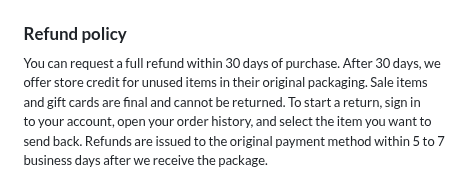
To show how multi-page output looks, we made a two-page PDF with no text layer, the same shape as a scanned document. Each page is an image of one test screenshot from our OCR accuracy test: para01-article on page 1 and para05-policy on page 2. We built it with img2pdf, and pdftotext finds no text in it. You can download the test PDF and try it yourself.
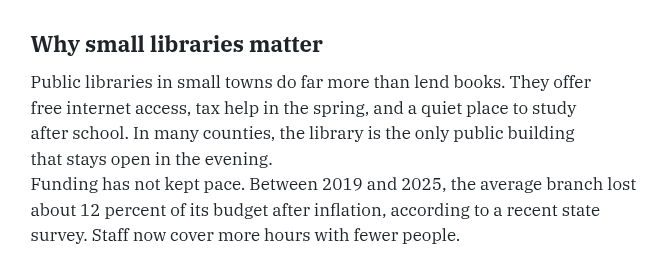
Why small libraries matter

Public libraries in small towns do far more than lend books. They offer
free internet access, tax help in the spring, and a quiet place to study
after school. In many counties, the library is the only public building
that stays open in the evening.
Funding has not kept pace. Between 2019 and 2025, the average branch lost
about 12 percent of its budget after inflation, according to a recent state
survey. Staff now cover more hours with fewer people.Refund policy
You can request a full refund within 30 days of purchase. After 30 days, we
offer store credit for unused items in their original packaging. Sale items
and gift cards are final and cannot be returned. To start a return, signin
to your account, open your order history, and select the item you want to
send back. Refunds are issued to the original payment method within 5 to 7
business days after we receive the package.In the box, each page starts with a header line that gives the file name and the page number, so page 1 and page 2 stay apart when you paste. The status line counts pages as File 1 of 2 and File 2 of 2 while it works.
Page 1 came back exactly as written. Page 2 has one mistake: sign in came back as signin. Both pages took 1.63 seconds together (median of three runs), about 0.81 seconds per page. The tool draws each PDF page at twice its size before reading, so small print gets more pixels to work with.
How we timed it: we ran the current site code (commit 968e282) as a local production build and drove it with headless Chromium 153 on an 8-core Linux machine, with the recognition model already loaded. The clock starts when the tool shows it is busy and stops when it shows it is done, the same way our accuracy test times each image.