Guide
OCR code from tutorial screenshots
Code in a PNG is still pixels. OCR gets you close; a short cleanup pass fixes O/0 and indent drift.
Updated September 25, 2026
Why tutorials ship code as images
Blog posts, slide decks, and some Stack Overflow answers paste code as screenshots. You cannot select it. Retyping a thirty-line snippet invites typos.
OCR is a fair shortcut when the font is a clear monospace face and the crop is tight. It will not beat a real gist or repo clone when those exist. Prefer the source file when the author linked one.
Screenshot2Text runs the read in your browser. Paste or drop the image, then treat the output as a draft to clean, not as sacred text.
Capture for monospace edges
Zoom the tutorial until the glyphs are large. Crop out the browser chrome, author avatar, and upvote widgets. Include only the code block.
Dark themes are common in IDE shots. Screenshot2Text flips many dark regions, but a sharp PNG still wins. Soft chat recompressions blur underscores and commas.
If the post shows a partial window with a horizontal scrollbar, scroll and capture the rest in a second crop. Do not expect one narrow frame to invent the clipped columns.
Run OCR, then clean like a diff
Drop the crop on the homepage or copy-text-from-image landing. Keep English selected for most code samples. Skim the editable box immediately.
Common OCR swaps in code: O and 0, l and 1 and I, S and 5, hyphen and en-style dashes rendered as lookalikes, and curly quotes instead of straight ones. Braces and backticks also drift.
Fix indentation by eye against the screenshot. Engines often flatten leading spaces or turn tabs into uneven gaps. Paste into your editor and run the project formatter only after the tokens look right.
Worked example: a JavaScript snippet
This is code01-js, one of the code screenshots in our OCR accuracy test. It is a 496 by 213 pixel PNG of an eight-line function in a monospace font. We ran it on a local production build of the current site code in headless Chromium, and the output below is exactly what came back.
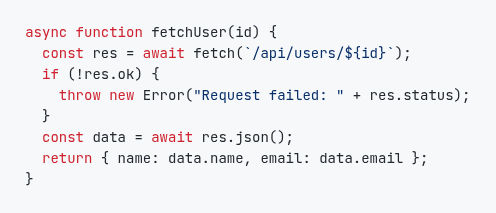
async function fetchUser(id) {
const res = await fetch( /api/users/${id} );
if (tres.ok) {
throw new Error(“"Request failed: " + res.status);
}
const data = await res.json();
return { name: data.name, email: data.email };
}
Four fixes turn this back into working code:
Line 2: the backticks around the URL were lost, so fetch( /api/users/${id} ) becomes fetch(`/api/users/${id}`) with the spaces removed.
Line 3: tres.ok should be !res.ok. The exclamation mark was read as a t, which flips the meaning of the check.
Line 4: there is a stray curly quote before "Request failed: ". Delete it so only the straight quote is left.
Indentation: every line came back flush left. Re-indent the body, or paste into an editor and run its formatter.
The words and names were all right. The errors were in symbols, which is the usual pattern for code. This screenshot scored a character error rate of 1.80% in run 3 of the accuracy test, dated September 25, 2026, and the four code screenshots averaged 2.03% as PNG, the highest of any kind of screenshot we tested (from the run 3 CSV). Always run or lint recovered code before you trust it.
Indentation and line breaks
Python and YAML care about indent. A single missing space breaks the block. Compare each line start to the image before you run anything.
Wrapped lines in a narrow blog theme can look like real newlines. If a statement splits mid-token in the OCR box but not in the screenshot, join it.
Line numbers printed in the gutter are noise. Delete them. They are a frequent source of stray digits at column zero.
Languages, comments, and mixed screenshots
Code keywords are mostly English ASCII even when surrounding commentary is not. If comments are in another language and you need them accurate, crop comments separately with the matching language pack.
Syntax-colored screenshots are fine when contrast is high. Neon themes on busy wallpapers are not. Switch the IDE theme and recapture when you control the machine.
Animated GIFs of typing demos are a poor source. Pause on a sharp frame or find a static image.
Security and honesty
Do not paste OCR'd secrets from a tutorial that accidentally showed a real key. Treat every token as untrusted until you understand it.
OCR will not prove the snippet is safe or current. Read the surrounding article. Check the date. Prefer official docs when the topic is auth, payments, or crypto.
Use Screenshot2Text when the only copy you have is a picture. Local recognition gets you a draft. It will not replace a proper source checkout.