Guide
OCR for dark mode screenshots
Light text on a dark panel is fine for people and harder for classic OCR. Here is how to capture dark UI so Screenshot2Text can read it more cleanly.
Updated September 25, 2026
Why dark UI confuses OCR
Classic optical character recognition grew up on scanned paper: dark ink on a light page. Many modern apps flip that. Light gray letters sit on a near-black panel. Neon labels sit on deep purple. Code editors use themes where comments, strings, and keywords each get a different color on a dark canvas.
People read those screens without thinking. OCR engines look for edges and connected components that resemble letter shapes. When the background is dark and the type is light, a pipeline that assumes ink-on-paper can miss strokes, glue letters together, or invent punctuation from anti-aliased glow.
Screenshot2Text flips dark regions before recognition so light-on-dark UI can still read. That helps a lot on ordinary dark themes. It does not invent detail that was never in the file. If the type is tiny, soft, or low contrast, inversion alone will not save the pass.
Capture sharp, not stylish
Take a real screenshot. Do not point a phone at a monitor running a dark IDE. Camera shots add glare, moire, and color casts that wreck thin light glyphs on dark panels.
Prefer PNG when you still have one. JPEG and lossy WebP soften high-frequency edges. Thin UI fonts and punctuation suffer first. Chrome sometimes saves captures as WebP. Those still work, but a PNG of the same frame usually keeps commas and 1/l/I distinctions clearer.
If you control the app theme for a moment, switch to a higher contrast dark theme, or temporarily use a light theme for the capture. A one-time theme flip for a support screenshot is often faster than fighting OCR later. If you cannot change the theme, raise font size in the app before you capture. Larger light glyphs on dark panels survive OCR better than 11px muted gray.
Crop like you mean it
Dark mode screenshots often include more chrome than you notice: status bars, traffic lights, sidebar icons, unread badges, and floating buttons that glow. Those bright marks become false words after inversion.
Crop to the paragraph, dialog, or terminal pane you care about. Empty dark wallpaper does not help recognition. Neon notification toasts mixed into the frame pull the engine toward junk lines. Chat apps are frequent offenders: avatars, reaction piles, and composer chrome should leave the crop when you only need the message body.
Screenshot2Text already filters some obvious keyboard rows and phone chrome, but a tighter crop still wins. Less chrome means fewer false words and a cleaner copy box.
Contrast beats clever colors
Low contrast is a separate problem from polarity. Gray text on a slightly darker gray card hides edges. Dim secondary labels next to bright headings cause the engine to keep the headings and drop the fine print. Syntax themes that use deep blue on black look stylish and read poorly as pixels.
If you can bump contrast in accessibility settings, do that before capture. If the text sits on a busy background image, move to a plain settings screen or a blank editor buffer when possible. Busy wallpapers behind translucent panels are especially hard: the engine sees texture as ink.
Avoid capturing through heavy blur overlays, frosted glass sidebars, and animated gradients. Freeze the UI in a stable state. Motion blur on a scrolling dark feed will destroy letter shapes even when the theme itself is fine.
What Screenshot2Text does with dark regions
When the reader detects a dark-dominated region, it inverts that region so the OCR pass sees darker glyphs on a lighter field. That is an automatic convenience for Screenshot2Text users. You do not need a separate "dark mode" toggle for ordinary cases.
Still check the editable box. Inversion can amplify compression artifacts. Soft neon edges can become speckles that look like punctuation. Skim for swapped characters (O/0, I/l/1, rn/m) the same way you would on a light screenshot.
If a whole window is dark but a small modal is light (or the reverse), crop them separately. Mixed polarity in one giant frame makes region detection harder and reading order messier.
Dark versus light in our test, and the flip in action
In run 3 of our OCR accuracy test, dated September 25, 2026, the same 22 screenshots were read as normal light PNG files and as dark mode PNG files with light text on a dark background. As light PNG, the mean character error rate (CER) was 0.65%. In dark mode it was 1.77%, with word recall of 95.86% against 96.82%. Dark files also took longer to read, 1.26 seconds each on average against 0.71 seconds. The figures come from the run 3 CSV.
| Kind of screenshot | Light PNG | Dark mode PNG |
|---|---|---|
| App and settings screens (5) | 0.41% | 3.87% |
| Paragraph text (5) | 0.09% | 0.78% |
| Code and terminal (4) | 2.03% | 2.21% |
| Receipts, invoices, and price lists (4) | 0.92% | 0.59% |
| Chat conversations (4) | 0.00% | 1.12% |
| All 22 screenshots | 0.65% | 1.77% |
App screens lost the most in dark mode. Receipts actually came out slightly better dark than light, which is the kind of noise you get with 4 images per group.
To see what the flip is worth, on September 25, 2026 we ran the same 22 dark screenshots through a test build with the invert step turned off. That build is not what the site ships. Without the flip, the mean CER was 7.65%. With it, 1.77%. The flip helped on 11 screenshots, made no difference on 9, and made 2 slightly worse: code02-python went from 0.61% to 1.23% and para04-news from 0.00% to 3.67%. Every figure from that test build comes from its per-image results, published as the dark mode invert ablation CSV, with the same columns as the run 3 CSV.
Here is one screenshot from that test, chat03-team in dark mode, and the grayscale image the engine actually reads after the flip. The dark bubbles and background became light, and the text became dark.
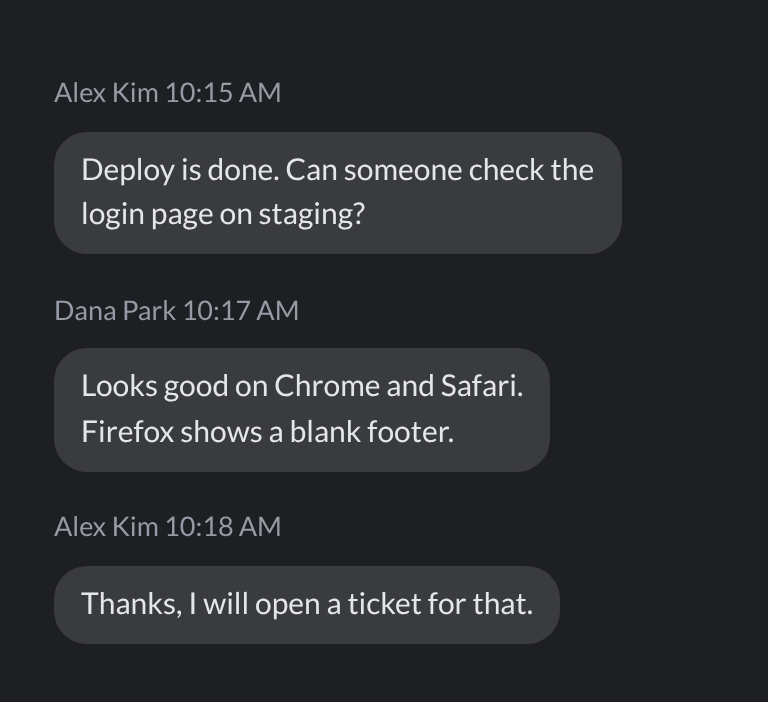
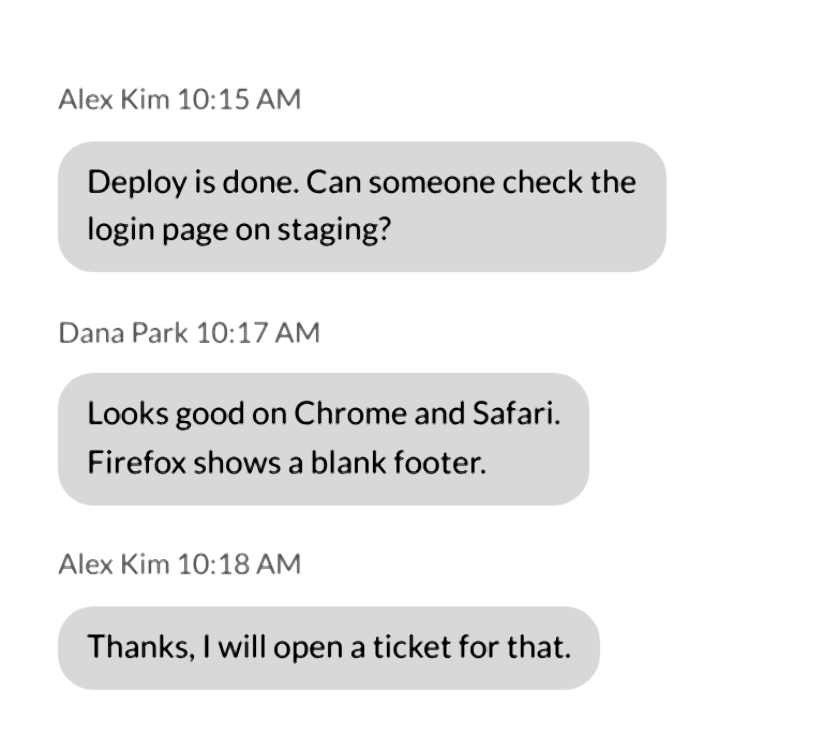
Alex Kim 10:15 AM

Deploy is done. Can someone check the
login page on staging?

Dana Park 10:17 AM

Looks good on Chrome and Safari.
Firefox shows a blank footer.

Alex Kim 10:18 AM

Thanks, I will open a ticket for that.Alex Kim 10:15 AM
Dana Park 10:17 AM
ooks good on Chrome and Safa
refox shows a blank foote
Alex Kim 10:18 AMWith the flip, every word came back, a CER of 0.00%. Without it, in the test build, two whole messages disappeared and the Chrome and Firefox lines lost letters at both ends, a CER of 49.77%. That is why the flip runs on its own, with no setting to turn on.
Terminals, code, and IDE themes
Developers drop dark terminal screenshots constantly. Monospace helps. Tiny font sizes hurt. Zoom the terminal or editor before capture so glyphs occupy more pixels. Wrap long lines in the app if a single horizontal strip is getting cut off.
High-contrast themes (bright green or white on true black) usually OCR better than pastel-on-charcoal themes. Ligatures in programming fonts can confuse glyph segmentation. If a pass looks odd around operators and multi-character ligatures, try a theme without ligatures for the capture, or paste the original text from the editor when you still have it. OCR is a recovery tool, not a replacement for copy-paste from a source you control.
For stack traces and error dialogs, crop out the rest of the IDE. Sidebars full of file-tree icons become noise.
When dark mode OCR still fails
Some captures will not read well even after good cropping:
Very small type on a phone UI at default zoom.
Neon text with bloom or glow effects.
Transparent type over video or animated backgrounds.
Stylized display fonts and outlined lettering.
Screenshots that were re-compressed in chat apps until edges went mushy.
Ask for a re-export at higher resolution when you can. Upscaling a soft thumbnail does not invent real detail. If the tab stalls on a huge retina desktop capture, crop first. Local recognition leans on your device. That is the privacy model for Screenshot2Text: free to use, ads in the chrome, pixels processed in your browser, no upload for OCR.
Quick checklist
Prefer a real screenshot over a photo of the screen.
Zoom the UI, then capture.
Crop chrome, badges, and sidebars.
Prefer PNG; avoid extra chat compression.
Pick the correct language in the tool.
Run one dense panel at a time when layouts mix light and dark.
Skim and edit the output box before you paste elsewhere.
If results are still messy, read the better screenshot OCR guide and the messy OCR guide. For privacy context on why recognition stays local, see the private browser OCR guide. Dark mode is normal. OCR just needs a cleaner crop and enough contrast to see the letters.