Guide
OCR table text from a screenshot
Tables in a PNG are still pixels. You get plain text, not a perfect spreadsheet. Crop one grid, read it, then check columns by eye.
Updated September 25, 2026
Tables that are only pictures
Dashboards, slide decks, and PDFs often flatten a grid into an image. You cannot click a cell. Re-typing a twenty-row table invites mistakes.
OCR can recover many labels and values when the grid is sharp and the crop is tight. It will not rebuild formulas, merged cells, or a faithful CSV structure on its own.
Screenshot2Text returns plain text in an editable box. Treat that as a transcription draft. You still align columns by eye before you paste into Sheets or Excel.
Crop one grid at a time
Capture a single table region. Leave out page titles, filter chips, side nav, and chart legends that sit beside the grid. Extra chrome becomes junk lines in the OCR box.
Zoom until header labels and cell digits are easy to read on your display. If you cannot read a value at capture zoom, OCR will not invent it.
Wide tables that scroll horizontally need more than one crop. Do not expect a narrow viewport shot to recover clipped columns.
Run OCR, then repair spacing
Drop the crop on the extract-text-from-image landing or the homepage. Set the language. Read the editable result.
Engines often collapse columns into uneven spaces or smash adjacent cells together. Insert tabs or commas yourself if you need a paste that splits cleanly. The tool does not promise spreadsheet export.
Watch for 0/O, 1/l/I, and lost decimal points. Money and ID columns deserve a second look against the screenshot.
Worked example: a support ticket table
We drew a small table, open and closed tickets by team with a median first reply time, and saved it as a 416 by 268 pixel PNG. The numbers are sample data. We ran it on a local production build of the current site code in headless Chromium, and the output below is exactly what came back.
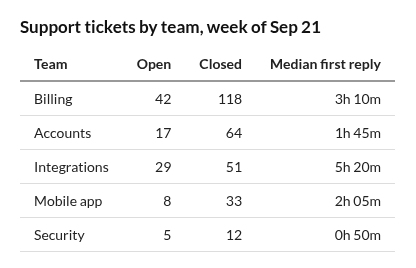
Support tickets by team, week of Sep 21
Team Open Closed Median first reply
Billing 42 118 3h 10m
Accounts oo 17 64 1h 45m
Integrations Bh 29 51 5h 20m
Mobile app 8 33 2h 05m
Security 5 12 Oh 50m
The rows kept their order and every count is right. Three things need fixing before this goes into a spreadsheet:
Stray marks: oo after Accounts and Bh after Integrations are junk from the row lines. Delete them.
A letter for a digit: Oh 50m in the Security row should be 0h 50m, a zero read as a capital O. Time and ID columns are where this happens.
Columns: the cells are separated by single spaces, and Mobile app and Median first reply contain spaces of their own, so splitting on spaces breaks those rows. Put a tab before each number instead (or use your spreadsheet's split with the numbers as the guide), then paste. After those repairs the table reads:
| Team | Open | Closed | Median first reply |
|---|---|---|---|
| Billing | 42 | 118 | 3h 10m |
| Accounts | 17 | 64 | 1h 45m |
| Integrations | 29 | 51 | 5h 20m |
| Mobile app | 8 | 33 | 2h 05m |
| Security | 5 | 12 | 0h 50m |
That matches the picture. A quick check that catches most mistakes: count the rows, then add up a column in the spreadsheet and compare it with any total in the source.
Headers, zebra stripes, and dark grids
Bold header rows usually read well when contrast is high. Zebra striping is fine if text stays dark on light or light on dark with clear edges.
Dark-mode admin tables follow the dark UI guide: sharp PNG first, then recognition. Neon status pills inside cells can speck thin glyphs.
Vertical rules and thick borders sometimes appear as stray characters. Delete them. They are noise, not data.
What you should not expect
Do not expect a perfect multi-column CSV with typed numbers and preserved formulas. Screenshot2Text is a plain-text OCR page, not a spreadsheet importer.
Merged cells, diagonal headers, and handwritten tally marks are common failure modes. Split the job into smaller crops or retype the few critical cells.
Searchable PDF rebuild is out of scope here. If you needed that product shape, read the guide that explains why this tool returns text instead.
A practical workflow
Crop the grid. Prefer PNG. Run OCR in the browser. Fix spacing and digits. Paste into your sheet as text, then use the sheet's split column tools if needed.
For many tables in one deck, name your crops or add a header line in the text box so you know which slide produced which block.
Recognition stays in the tab. Verify every critical number before you publish or file it.