Guide
Private image to text: why browser OCR matters
Browser OCR reads your image inside your own tab, so the file is not sent to a server. Screenshot2Text works this way. Below is a real network log from one run, what still loads from the network, and when an upload tool is the better pick.
Updated October 11, 2026
The upload model, and why it exists
Most image-to-text sites ask you to upload a file. Their servers run a recognition model, then return text. That design is convenient when the heavy work lives in a data center, and it is how many commercial APIs are billed.
It also means a copy of your screenshot briefly sits on someone else's machine. For a meme that is fine. For a password reset code, a customer record, an unpublished design, or a page from a personal contract, it is a real privacy decision, even when the vendor says files are deleted quickly.
Upload sites also tend to meter usage. Hosting recognition costs money per file, so guests hit daily quotas, queues, or a sign-in wall. Those limits are a product choice, not a law of OCR.
If your threat model is "I do not want this file on a stranger's disk even for thirty seconds," browser OCR is the better default. If your threat model is "I need a specialized cloud vision model and I am allowed to send this file," an upload converter can be the right tool. Say the tradeoff out loud before you drag the file.
What "in the browser" actually means here
Screenshot2Text runs open-source Tesseract OCR inside your browser tab as WebAssembly. You drop a PNG, JPG, WebP, GIF, BMP, or PDF. The page reads the pixels on your device and writes selectable text into an editable box. We do not upload your file for recognition, and we do not store the picture or the extracted string on a server.
The first run may fetch small support files to your device: the OCR engine, language data for the language you picked, and a page-rendering script when you open a PDF. Those requests ask for a named asset from a public content delivery network. They do not include your image or the text the tool produced. Your browser caches what it fetched, so later reads usually skip the download.
Closing or reloading the tab clears the working copy in memory. There is no account and no file history on our side, because we never held one.
A real check: a bank screenshot and its network log
To see what leaves the device, we dropped num04-bank from our OCR accuracy test, a phone-sized screenshot of bank activity, on the live site on October 11, 2026. We used a fresh browser profile with nothing cached and logged every network request the page and its workers made while the file was read.
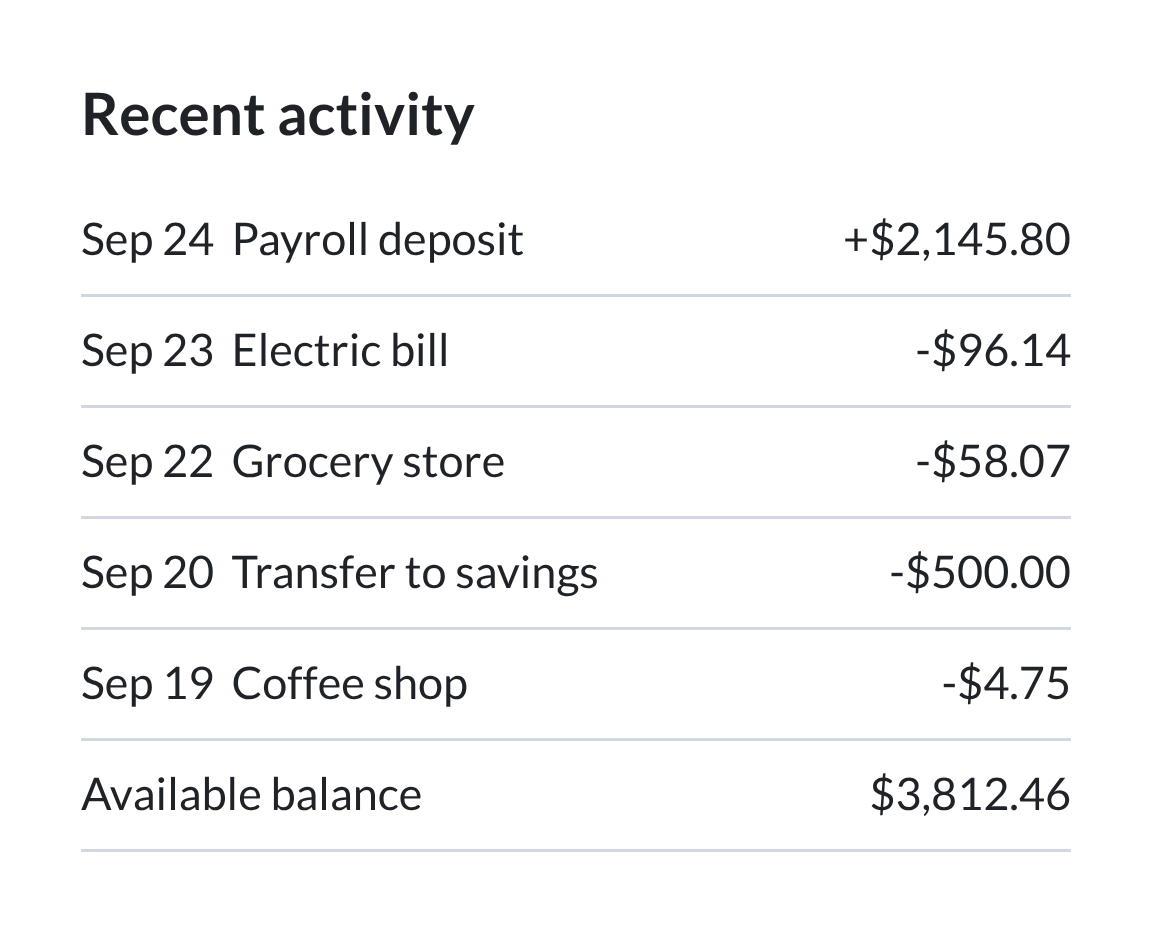
Recent activity

Sep 24 Payroll deposit +$2,145.80

Sep 23 Electric bill -$96.14

Sep 22 Grocery store -$58.07

Sep 20 Transfer to savings -$500.00

Sep 19 Coffee shop -$4.75

Available balance $3,812.46| Request | Sent to | What it is | Request body |
|---|---|---|---|
| GET one script file | screenshot2text.com | Part of the site's own code, loaded when OCR starts | None |
| GET worker.min.js | cdn.jsdelivr.net | The Tesseract.js worker | None |
| GET tesseract-core-simd-lstm.wasm.js | cdn.jsdelivr.net | The OCR engine | None |
| GET eng.traineddata.gz | cdn.jsdelivr.net | English language data | None |
| 4 blob: reads | Nowhere, read from memory in the tab | The dropped image and the worker script | None |
All of these were GET requests with no request body, so none of them carried the image or the text. The text came back with no wrong characters, a 0.00% character error rate. We then dropped the same screenshot again. This time the only requests were the in-memory blob: reads, because the engine and language data were already cached, and the text was identical.
How we checked: headless Chrome 154 driven by a script that recorded the method, address, and body size of every request from the page and its workers. This covers the requests made while the file was read, not the ad code or other scripts the page loads when you open it.
Ads are separate from recognition
The site is free to use. The page may load the Google AdSense script in its chrome. Ad code does not receive your image, your PDF, or the extracted text, and nothing about your file is used to choose an ad.
That separation matters for trust. Screenshot2Text stays usable without accounts or paywalls. The privacy page spells out cookies and third-party request data in plain language.
If you need the same no-upload promise written as a dedicated landing, use the image to text without uploading page. The reader is the same; the copy focuses on the privacy angle.
If you are comparing tools and one of them asks for a card to "remove limits," that is a different product category than this site. We will not build that path.
Tradeoffs you should expect
Local recognition leans on your device. Upload tools wait on network round trips and server queues. Browser OCR waits on your CPU and on the first-time download of language data. A handful of ordinary screenshots is the intended use. Dozens of huge camera originals may slow or stall the tab because the work is not farmed out to a remote GPU cluster. That is the privacy model showing up as a performance ceiling.
Large hosted models can be stronger on handwriting, exotic scripts, or heavily degraded photos. Classic Tesseract in the browser is strong on sharp printed type and clear UI screenshots, and weaker on cursive, glittery display fonts, and blurry camera shots of monitors. Accuracy on sharp screenshots and printed pages sits in the same class as other Tesseract-based readers. We do not claim a hidden cloud vision model, better handwriting, or magic on blurry photos. The difference on this site is where the pixels are processed.
Batches, PDFs, and history
Upload converters often render pages in the cloud and may offer zip downloads, API hooks, or folder sync. That is convenient when you already live inside that vendor's account.
Screenshot2Text runs pages and images sequentially in the same local reader. Batch mode labels blocks with filename headers so you can tell which capture produced which paragraph. There is no cloud folder and no cross-device history. If you need a long archive of past jobs, you copy text out yourself. That is intentional. A history feature would push the product toward accounts and stored files.
For scan quality and long documents, see scanned PDF to text and batch PDF OCR without upload.
Browser OCR or an upload converter: when to choose which
Choose browser OCR (Screenshot2Text) when the screenshot is sensitive or you simply do not want another upload form, when you want a free tool without account gates or a paywall, when the source is a sharp screenshot or a clear printed page, and when you are fine editing a rough pass in an on-page box.
Choose an upload converter when you need a specialized hosted model (for example, difficult handwriting) and you are allowed to send the file, when your org already approved that vendor and its retention policy, or when you need API automation into a pipeline we do not offer. Both can be the right call; they are not the same product.
Choose neither web tool when policy says the file cannot leave a managed device at all. In that case use an offline desktop OCR package your security team already vetted.