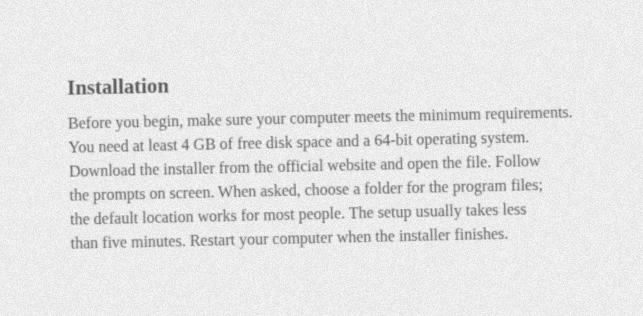
Scans bring problems a screenshot never has. Three matter most.
Resolution. The Tesseract project, whose engine this page uses, says it works best at 300 dpi or more. If your scanner has a setting, 300 dpi in grayscale is a sensible default for normal body text. Go higher for small print. Lower settings save space but leave thin letters with very few pixels.
Skew. A page that sits crooked on the glass tilts every line, and the same Tesseract guide notes that line finding gets much worse when a page is too skewed. Push the page against the scanner edge, or use your scanning app's deskew option before you save.
Faded print. Old receipts, thermal paper, and light toner lower the contrast between ink and paper. Scan in grayscale rather than pure black and white, so faint strokes are not thrown away before OCR sees them.
We do not have a real flatbed scan in our test set, so here is an honest stand-in. We took the test screenshot para03-docs from our OCR accuracy test and made it look scanned: grayscale, a gray paper tone, faded toner (black lifted to mid gray), a 1.3 degree tilt, a slight blur, and grain.
One word is wrong: your came back as yous in the first sentence. Everything else, including 4 GB and 64-bit, matched. It took 0.55 seconds (median of three runs). A mild tilt and faded print like this are fine. A badly crooked page or a very low resolution scan is where you should rescan rather than fix the text by hand.
How we timed it: we ran the current site code (commit 968e282) as a local production build and drove it with headless Chromium 153 on an 8-core Linux machine, with the recognition model already loaded. The clock starts when the tool shows it is busy and stops when it shows it is done, the same way our accuracy test times each image.