Guide
Paste a screenshot for OCR
Capture, paste, read. Skip naming a temporary file when you just need the text from a dialog or chat bubble.
Updated September 25, 2026
Why paste beats Save As
Error dialogs, toast messages, and chat bubbles often need one quick copy. Saving Desktop/screenshot-372.png just to upload it somewhere is busywork.
Screenshot2Text listens for paste on the tool page. Copy a screenshot to the clipboard, focus the page, then press Ctrl+V or ⌘V. The image enters the same pipeline as a file drop.
That keeps the loop short: capture, paste, edit, copy text. No temporary folder clutter.
Capture into the clipboard
Windows: Win+Shift+S copies a region to the clipboard. Mac: Control+Shift+Command+4 copies a region. Many Linux desktops offer a similar screenshot-to-clipboard action.
Phone workflows still need a transfer step unless your desktop receives the image through continuity features. Once the image is on the clipboard of the machine running the browser, paste works the same.
If your OS only saves a file, open that file, copy the image, or drop the file instead. Paste is a shortcut, not the only path.
Paste on the Screenshot2Text page
Open the screenshot to text homepage. Wait until the drop zone is ready. Click the page once so the tab has focus. Paste. You should see the screenshot enter the queue like a dropped file.
The on-page hint reminds you: paste with Ctrl+V or ⌘V. If nothing happens, confirm the clipboard actually holds an image, not only plain text, and that the browser grants clipboard paste in that tab.
Pick the language before you judge a non-English dialog. Then run recognition and edit in the box.
Worked example: pasting a dialog
We copied ui02-dialog, a delete confirmation dialog from our OCR accuracy test, to the clipboard as an image, clicked the Screenshot2Text page, and pressed Ctrl+V. No file was saved first. The status line named the pasted image image.png, because a clipboard image has no file name. From paste to finished text took 1.25 seconds in a single run on a local build of the current code in headless Chromium.
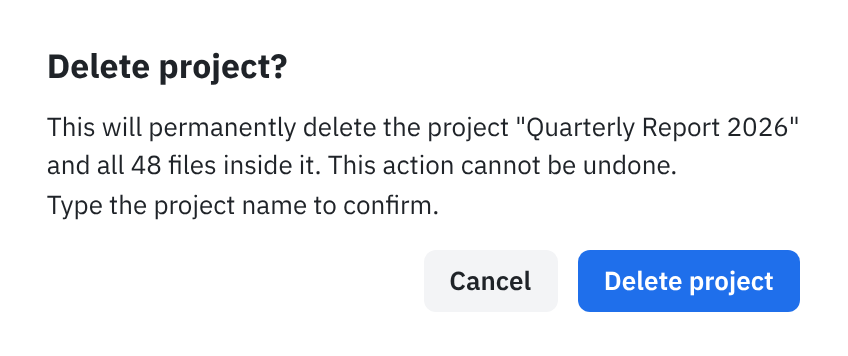
Delete project?

This will permanently delete the project "Quarterly Report 2026"
and all 48 files inside it. This action cannot be undone.
Type the project name to confirm.

Cancel Delete project
Every word and number is right, including the project name and the 48 files. The only edit you might make is the last line: Cancel and Delete project are the dialog's two buttons, read as one line. Delete it if you only want the message. This screenshot also read with no errors in run 3 of the accuracy test, dated September 25, 2026 (from the run 3 CSV), when it was dropped as a file. Pasting reads the same pixels, so the result is the same.
Best fits for paste OCR
Error dialogs and stack traces you want in a ticket.
Chat snippets when the messenger blocks selection.
Small UI labels during design QA.
A single PDF page you already rendered elsewhere and copied as an image.
For long scanned PDFs or multi-file batches, drop files instead. Paste is for the quick single frame.
Got a QR code instead of words? The QR code scanner for screenshots takes the same Ctrl+V paste.
Cropping still matters
Clipboard paste does not magically remove phone status bars or huge empty wallpaper. If the snip is oversized, recapture a tighter region before you paste again.
Dark dialogs follow the same rules as other dark UI. Sharp edges help. Soft phone photos of a monitor do not.
If paste quality looks worse than a PNG save from the same snip, save once as PNG and drop that file. Some clipboard paths re-encode.
Privacy and product notes
Paste stays in the browser tab for recognition, same as drag-and-drop. Ads on the homepage do not receive your image.
If paste fails, it is almost always clipboard contents, focus, or browser permission.
Need a deeper dialog-and-chat walkthrough? Read the error dialogs guide next. Comparing Windows snip OCR to the browser path? Use the Snipping Tool comparison guide.