Guide
iPhone screenshot to text on a computer
Live Text is fine on the phone. When you already work on a computer, move the image over, convert HEIC if needed, and read it in a tab that does not upload for OCR.
Updated September 25, 2026
When the computer is the right place
Live Text on iPhone is fast for a quick copy on the phone. When the next step is a desktop ticket, a spreadsheet, or a long edit, working on the computer is easier.
Move the screenshot over. Open Screenshot2Text in a browser. Drop or paste the image. Recognition stays in the tab.
This path also helps when the phone screenshot needs a bigger screen to proofread tiny UI text.
Get the image off the iPhone
AirDrop to a Mac when you can. Save to Files and pull from iCloud on the PC. Email or messaging to yourself works for non-sensitive shots; skip that for receipts and private chats.
Prefer the original screenshot file over a second photo of the phone screen. A re-shot monitor adds glare and blur.
Name the file so you can find it next to your other downloads.
Convert HEIC if the file will not read
In the standard SDR setting, iPhone screenshots are PNG files, and those read fine. You only have a HEIC file if Screen Capture is set to HDR (iOS 26 and later) or the image is a camera photo saved in the High Efficiency format. Screenshot2Text cannot read HEIC today: the file picker does not list it, and a dragged or pasted HEIC file fails to decode in browsers without HEIC support, such as Chrome and Firefox. Convert to JPG or PNG first.
The next section walks the conversion on iPhone, Mac, and Windows. Once you have PNG or JPG, the rest of this page applies.
HEIC conversion steps by device
On iPhone: open the HEIC photo or HDR screenshot in Photos and tap Share. Some share sheets list JPEG or PDF directly. You can also open the file in Files or Shortcuts and export it as JPEG, then AirDrop or save the converted copy.
On a Mac: open the HEIC in Preview, choose File, then Export, and pick JPEG or PNG. Save it next to the original. Finder Quick Actions sometimes offer Convert Image, which does the same job for a file already on disk.
On Windows: Photos, Paint, and many image viewers can open HEIC once the HEIF extension pack is installed, then Save As PNG or JPEG. If Windows will not open the file at all, convert it on the phone first.
Whichever device you use, do not upload the HEIC to a random web converter just to change the format. Keep the image on devices you control.
Drop or paste into browser OCR
Open the screenshot to text converter on your Mac or PC. Drop the file, or paste if it is on the clipboard.
Set the language. Crop phone chrome first if the status bar and keyboard are still in the frame. Edit the result. Copy or download .txt.
PNG, JPG, WebP, GIF, BMP, and PDF are fine. You get plain text out. Ad code does not receive the image.
Worked example: a phone-sized account screen
This is ui04-account from our OCR accuracy test. It was rendered at a phone screen width with 3x pixel density, the same density as recent iPhones, so it is 1230 by 969 pixels. It was made in Chromium, not captured on an iPhone, so it has no status bar. We ran it on a local production build of the current site code in headless Chromium, and the output below is exactly what came back. It took 0.34 seconds in a single run.
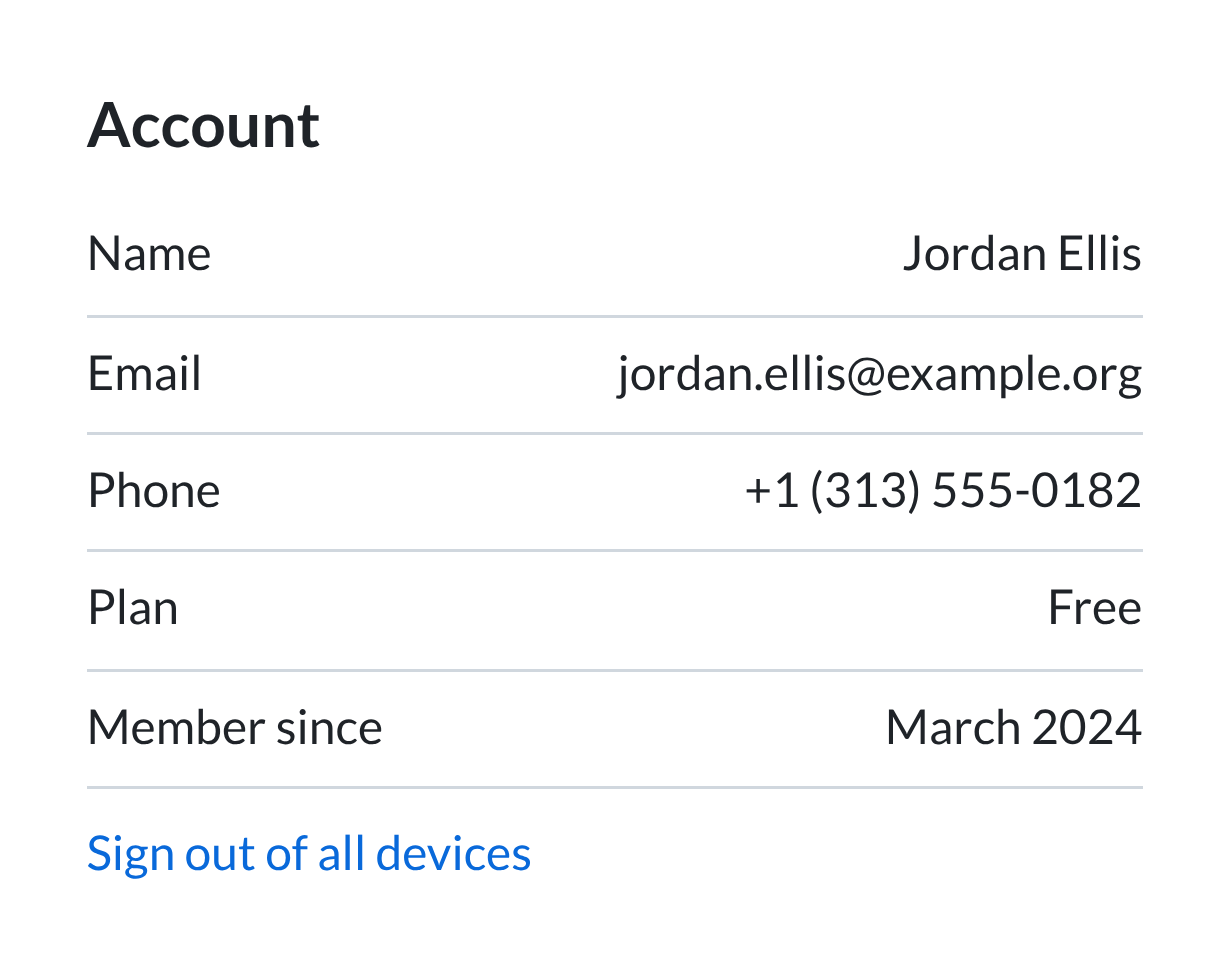
Account

Name Jordan Ellis
Email jordan.ellis@example.org
Phone +1(313) 555-0182
Plan Free
Member since March 2024

Sign out of all devices
One fix: the phone number lost the space after +1, so +1(313) 555-0182 becomes +1 (313) 555-0182. The email address, which is where a single wrong character would hurt most, came back exactly. That is 1 wrong character out of 138, a character error rate of 0.72% in run 3 of the accuracy test, dated September 25, 2026 (from the run 3 CSV).
High-density phone screenshots give OCR plenty of pixels per letter, which is why this read cleanly. A PNG screenshot moved to your computer by AirDrop, email, or a cable is the same file, so nothing is lost on the way. If it arrives as a HEIC file, convert it first as described above.
Mac Live Text versus this browser path
If the image is already open in Preview on a Mac and Live Text selects cleanly, you can copy there and skip the browser.
Use Screenshot2Text when you want the same steps on Windows or Linux, when you are pasting from the clipboard in a loop, or when you prefer an editable box with .txt download.
The Mac Live Text comparison guide spells out the side-by-side tradeoffs.
Honest limits
Tiny phone UI, dark themes, and compressed chat forwards still fail after transfer. Fix the crop and contrast before you blame the tool.
Do not expect a perfect rebuild of multi-column layouts. Proofread codes and money fields against the image.
Screenshot2Text from Tiny Utility Lab is free to use. No account is required for the OCR step.