Guide
OCR text from charts and infographics
Chart labels are often not selectable. Crop to one panel, run OCR, then check digits by eye.
Updated September 25, 2026
When numbers live only in pixels
Dashboards, slide infographics, and social charts often flatten labels into the image. You cannot highlight the axis text or the callout percentage.
OCR can recover many printed labels when contrast is strong and type is large enough. It will not rebuild the underlying spreadsheet. Treat results as a transcription aid.
Screenshot2Text runs that transcription in your browser. Crop, read, verify. The file stays on your device.
Crop to one panel
Infographics pack legends, titles, footnotes, and icons into one tall graphic. Dropping the whole poster invites scrambled reading order.
Capture one chart panel at a time: title, then axis labels, then callouts. Merge the notes yourself in order.
Zoom until axis ticks are readable to your eye. If you cannot read a digit at capture zoom, OCR will not invent it.
Contrast, color, and backgrounds
White labels on photo backgrounds fail often. Busy gradients behind small type hide edges. Recolor or export a cleaner view when you control the dashboard.
Dark dashboards follow the dark-UI guide: sharp source first, then recognition. Neon series colors on black can speckle thin glyphs.
Prefer PNG exports from the BI tool when available. A screenshot of a screenshot compounds compression.
Digits need a human pass
OCR confuses 3/8, 5/6, and 1/7 on small ticks. Always compare critical numbers to the image before you publish or file them.
Currency symbols, percent signs, and thin decimal points drop first under compression. If a value looks like an integer but the chart shows tenths, fix it by eye.
Do not use OCR alone for medical, legal, or financial decisions. It is a convenience layer, not an audit trail.
Worked example: a bar chart
We drew a simple bar chart of sample data, six months of sign-ups with a value on top of each bar, saved it as a 624 by 385 pixel PNG, and dropped it on Screenshot2Text. We ran it on a local production build of the current site code in headless Chromium, and the output below is exactly what came back.
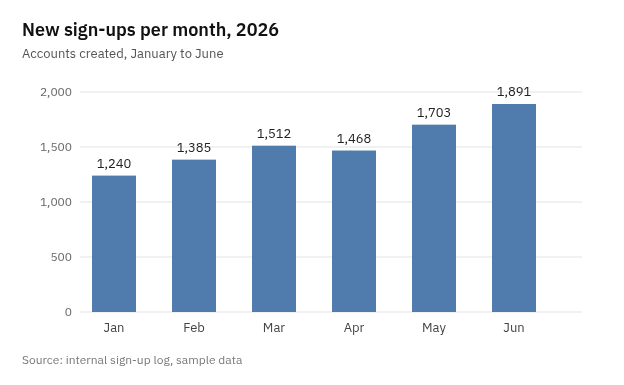
New sign-ups per month, 2026
Accounts created, January to June

2,000

1,500

Source: internal sign-up log, sample data
No digit was misread, but most of them were not read at all. The title, subtitle, source line, and two axis ticks came back. The six bar values, the month names, and the lower ticks were missing. Small labels scattered across a picture are the hardest case for OCR.
Bigger text helped. We enlarged the same screenshot to twice its size in an image editor and dropped it again:
New sign-ups per month, 2026
Accounts created, January to June

2,000 1,891
1,703
1,512
1,500 1,385 1.468
1,240

1,000

500

Jan Feb Mar

Source: internal sign-up log, sample data
Apr May Jun
All six values came back this time, with one wrong character: 1,468 came out as 1.468, a comma read as a period. The values are in order of height, not month, and the months sit on their own lines. So the corrections are to match each number to its month by looking at the chart (Jan 1,240, Feb 1,385, Mar 1,512, Apr 1,468, May 1,703, Jun 1,891) and to fix the comma. Cropping to the bars without enlarging brought back five of the six values but missed March, so size mattered more than the crop.
The lesson is the one above: give the labels more pixels, then check every digit against the picture. Zooming the page in before you take the screenshot is the easiest way to get bigger labels. For comparison, receipts, invoices, and price lists, where numbers sit in neat rows, had a mean character error rate of 0.92% as PNG in run 3 of our OCR accuracy test, dated September 25, 2026 (from the run 3 CSV). Charts are harder than that.
Legends, callouts, and multi-column layouts
Legends beside a plot are easier when cropped alone. Callout bubbles with leader lines often include decorative strokes that the engine tries to read as characters. Crop inside the bubble when you can.
Multi-column infographics should be read top-to-bottom per column. One full-page pass may zigzag.
Icons that contain letters (like a badge that says "NEW") will appear in the text box. Delete them if they are not part of the data story.
Workflow on Screenshot2Text
Open the extract-text-from-image landing or the homepage. Drop a tight PNG crop. Set the language. Edit the box. Copy the labels you verified.
For a deck with many charts, batch the crops and use filenames or headers so you know which panel produced which paragraph.
If output is empty on a sharp crop, check language and engine load, then read the failure guide.